If you are planning to appear in JEE Main 2027 Session 1, one small step on the application form can decide whether your registration moves forward smoothly or gets stuck at the last minute: live photo verification. The National Testing Agency (NTA) asks every applicant to capture a real-time photograph during online registration not only upload a scanned passport-size picture. This guide explains what the live photograph is, how it differs from the document upload, official photo rules, DigiLocker matching, registration dates, and practical tips so Class 12 students and droppers can complete JEE Main registration without rejection or impersonation flags.
What Is JEE Main Live Photo Verification 2027?
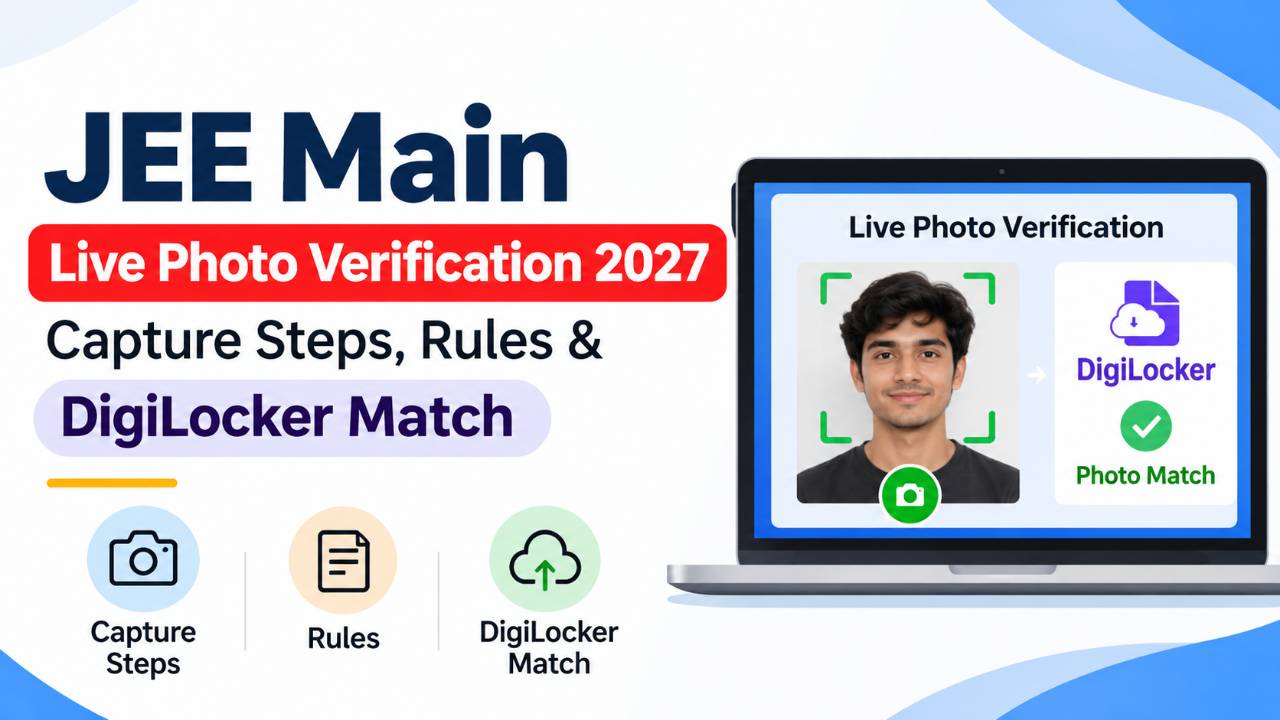
Live photo verification means the application portal opens your device camera (or a linked phone via QR code) and captures your face while you are actively filling the form. NTA stores this image to compare with your uploaded passport-size photograph and, where applicable, with identity details verified through DigiLocker. The purpose is to reduce impersonation, strengthen exam security, and confirm that the person who registers is the person who will enter the exam hall.
This step is not the same as attaching a JPG from your gallery. You need both: a compliant scanned passport-size photo on the document upload page and a successful live capture in the same registration session. Treating either as optional is a common reason applications stall or attract scrutiny later.
Why NTA Made the Live Photograph Mandatory
Engineering enterance exams feed into lakhs of seats across NITs, IIITs, and other participating institutes. Fully online registration made it easier to submit edited or borrowed images. Live capture adds an in-the-moment identity check tied to your login.
- Identity integrity: Your live face is matched against the passport-size photo you upload.
- Admit card accuracy: The photo printed on your admit card should align with what you look like on exam day.
- Fair competition: Genuine aspirants including those targeting JEE Advanced after a strong Main score should not lose seats to proxy candidates.
- Audit trail: A live capture creates a registration-time record that static scans alone cannot provide.
For parents helping from home: this is not a “selfie for social media.” It is an official identity record. Skip filters, heavy makeup changes, or borrowed phones logged into someone else’s account.
JEE Main 2027 Registration and Exam Timeline
Live photograph upload sits inside the normal registration window you cannot complete the form after the deadline by skipping photos. Key Session 1 dates from the official schedule are summarised below; Session 2 has a separate window in early 2027.
| Particulars | Session 1 (indicative) | Session 2 (indicative) |
|---|---|---|
| Registration opens | 24 October 2026 | 5 January 2027 |
| Last date (without late fee) | 22 November 2026 | 3 February 2027 |
| Late fee registration (Rs 500 extra) | 23–26 November 2026 | 4–7 February 2027 |
| Exam dates | 20, 21, 22, 23, 24 and 28 January 2027 | 2, 3, 4, 5, 6, 7 April 2027 |
Always verify the latest NTA notification and the information brochure on the official portal and on CollegeDwar’s JEE Main exam page before you pay fees.
How to Capture JEE Main Live Photograph 2027
When you reach the live photograph section, work slowly. Most errors come from rushing in dim rooms or using a low-quality webcam.
Prepare your device and browser
Use a smartphone with a clear camera, a laptop webcam, or a desktop with an external USB camera. Update Chrome, Edge, or Safari. Allow camera permissions when prompted. Avoid incognito mode if it blocks cookies needed to save the image. Close apps that may hijack the camera (Zoom, Teams, etc.).
Use the portal buttons correctly
The live photograph page typically shows:
- Capture Live Photograph take a new photo through the portal
- Upload Photograph use only if the flow allows re-upload after capture
- Refresh Captured Photo reload preview after saving
After a successful capture, look for a confirmation such as “Image has been saved” before you click away.
Scan the QR code when the desktop camera is weak
Many students fill the form on a family PC. If the webcam is grainy, scan the QR code shown on the form with your mobile or tablet, capture on the phone, and let the image sync to your application. This often produces sharper results than old laptop cameras.
Background, lighting, and framing
NTA expects a plain white background and proper lighting. Stand or sit before a white wall or chart paper. Light should fall on your face from the front, not from behind. Roughly 80% of your face should be visible, including ears. Look straight at the lens. Do not wear a mask during capture.
Passport-Size Photograph Rules for Document Upload
Separately, upload a recent scanned passport-size colour photograph. These rules apply to the file on the document upload page:
| Rule | Requirement |
|---|---|
| Type | Recently scanned passport-size photograph |
| Colour | Colour photo only |
| Face visibility | About 80% of face visible, including ears |
| Mask | Without mask |
| Background | White background |
| Format | JPG or JPEG only |
| File size | Minimum 10 kB, maximum 200 kB |
| Legibility | Clearly legible, not blurred |
| Subject | Must be the applicant’s own photo not anyone else’s |
Practical tip: Tell the studio “NTA JEE passport photo, white background, JPEG under 200 KB.” Keep the digital copy on your phone and laptop so you can re-upload if the first file fails validation.
Live Photo vs Uploaded Photo: What Is the Difference?
- Live photograph: Captured inside the application using camera or QR; proves you were present at registration.
- Uploaded passport photo: Static file used for admit card and records; must visually match the live capture.
- Both are mandatory for JEE Main 2027 online application.
Other national entrances use different document policies. For example, CAT and NCHMCT JEE follow their own brochures. Engineering aspirants should rely on NTA’s JEE Main information bulletin, not assumptions from another exam.
DigiLocker Matching: What Happens After Upload?
After live and document photos are submitted, NTA may compare your images with the photograph from identity verification linked via DigiLocker.
When photos match
You can proceed often via Save & Next to remaining form sections, exam city preferences, and fee payment.
When photos do not match
The portal generally offers:
- Recapture the live photograph (best option) adjust background, lighting, or angle.
- Proceed despite mismatch the bulletin warns that candidature is liable to be cancelled if impersonation is detected later. Use this only when you are certain all images are genuinely yours and current.
If your DigiLocker image is very old, update linked documents where legally permitted, or ensure your new passport photo and live capture look consistent with your present appearance.
Common Mistakes That Delay JEE Main Registration
- Patterned or coloured walls instead of plain white
- Side lighting that hides half the face
- Mask, cap, or sunglasses during live capture
- PNG/PDF uploads instead of JPG/JPEG
- File size below 10 kB or above 200 kB
- Heavy beauty filters or AI-enhanced portraits
- Cropping from a group photo
- Blocked camera permissions in the browser
- Capturing while someone else’s face appears in frame
- Ignoring mismatch warnings and rushing to payment
Troubleshooting: Camera, QR, and Upload Errors
Camera not opening: Check system settings (Windows/macOS privacy → camera), reload the page, try another browser, or switch to QR capture on mobile.
Image saved but preview blank: Click Refresh Captured Photo; clear cache only if NTA helpdesk suggests it avoid deleting half-filled forms.
Upload rejected for size: Compress JPEG slightly or ask the studio for a smaller export; do not reduce resolution so much that the face becomes pixelated.
Frequent mismatch with DigiLocker: Align hairstyle and remove accessories used in one photo but not the other; recapture live under bright, even light.
Registration Fees After Photo Steps
Pay the fee only after photograph steps show success. Indicative JEE Main 2027 registration fees:
- Rs 1,000 male candidates, General (Unreserved)
- Rs 900 male candidates, Gen-EWS/OBC
- Rs 800 female candidates, Unreserved/Gen-EWS/OBC
- Rs 500 SC/ST/PwD/Transgender candidates
Download and save the final confirmation page and payment receipt. These help if you need to correct details during the correction window.
Exam-Day Identity: Why This Matters Beyond the Form
Invigilators compare your appearance with the admit card photograph. A live verification process helps keep that photo current. Arrive with the same general look as your registration photos major last-minute changes (beard shaved off, very different hairstyle, large glasses added or removed) can trigger extra checks. Carry valid ID as listed in the admit card instructions.
Privacy, Data Use, and Official Portals Only
Complete live photo capture only on the official NTA JEE Main application website reached through verified links never on third-party “helper” sites that ask for your password. NTA uses photographs for registration validation, admit card generation, and exam administration. Do not share OTPs, passwords, or captured photos in Telegram or WhatsApp groups claiming to “fix” mismatch errors. If you need help, ask a trusted teacher or use official NTA helpdesk channels. Keeping identity data private is part of safe exam preparation, the same way you protect your application number before results.
Correction Window and When You Can Change Photos
NTA sometimes opens a short application correction window after registration ends. Whether photograph re-upload is allowed in that window depends on the year’s official notice. Do not depend on correction as a backup plan: assume your first live capture and JPEG upload must be correct. If correction opens, fix mismatches immediately rather than waiting until admit cards release. Students in coaching hubs often rush correction servers on the last day finish photos early in November 2026 to avoid that traffic.
Late Fee Registration: Photos Still Required
Session 1 late registration with an extra fee (typically Rs 500) runs from 23 to 26 November 2026 per the published schedule. Late fee does not relax photograph rules. You still need live capture, passport JPEG within size limits, and successful save messages. Paying late without fixing a failed photo leaves your application incomplete.
Setting Up a “Photo Corner” at Home or Hostel
You do not need a professional studio. A ten-minute setup works for most students:
- Pin white chart paper or a plain bedsheet on a wall facing a window (morning light is softest).
- Place the phone or laptop at eye level on a stack of books so the camera is not looking up your chin.
- Ask a sibling to hold the phone steady if using rear camera for sharper detail.
- Test one capture, zoom mentally on ears and eyes if blurry, wipe the lens and retry.
Droppers re-applying after a gap year should take a new passport photograph even if last year’s file is on your drive. Your face and hairstyle may have changed enough to cause DigiLocker or admit card mismatches.
New Exam Centres and Logistics (2027 Context)
NTA periodically adds exam cities and centres. Recent updates have included locations such as Kalahandi and Sundergarh in Odisha and Sahibzada Ajit Singh Nagar in Punjab for JEE Main. Your photograph steps are the same regardless of centre city choose exam cities carefully later in the form, but first secure identity uploads. Planning travel to a new centre is easier when registration, including photos, is completed well before the Session 1 exam dates in late January 2027.
Checklist Before You Click Submit
- Live photograph saved with confirmation message
- Passport JPEG between 10 kB and 200 kB on white background
- Face clearly visible (~80%), no mask
- DigiLocker mismatch resolved or consciously recaptured
- Personal details cross-checked with Class 10/12 certificates
- Fee paid and confirmation PDF stored
How Live Photo Verification Fits Your Long-Term Plan
Administrative steps feel small compared to physics and maths preparation, but they protect your eligibility. Session 1 in January 2027 is the first major milestone toward ranks, JoSAA counselling, and institute seats. Students aiming for IITs must first excel in Main and meet JEE Advanced eligibility. None of that matters if registration is incomplete or flagged for identity issues so finish photo verification calmly, early in the window, not on the last night before 22 November 2026.
Conclusion
JEE Main live photo verification 2027 is mandatory, but manageable: white background, even lighting, about 80% face visibility without a mask, live capture via webcam or QR-linked phone, plus a separate compliant passport-size JPEG. If DigiLocker comparison fails, recapture rather than ignore warnings. Complete registration before Session 1 deadlines, keep receipts, and track official updates on CollegeDwar’s JEE Main resource page alongside the NTA website.